

Add a server
1
Open Plugins
Open Plugins in the rail and select Add an MCP server.
2
Fill in the details
Enter a name and the server’s address, and choose who it’s for.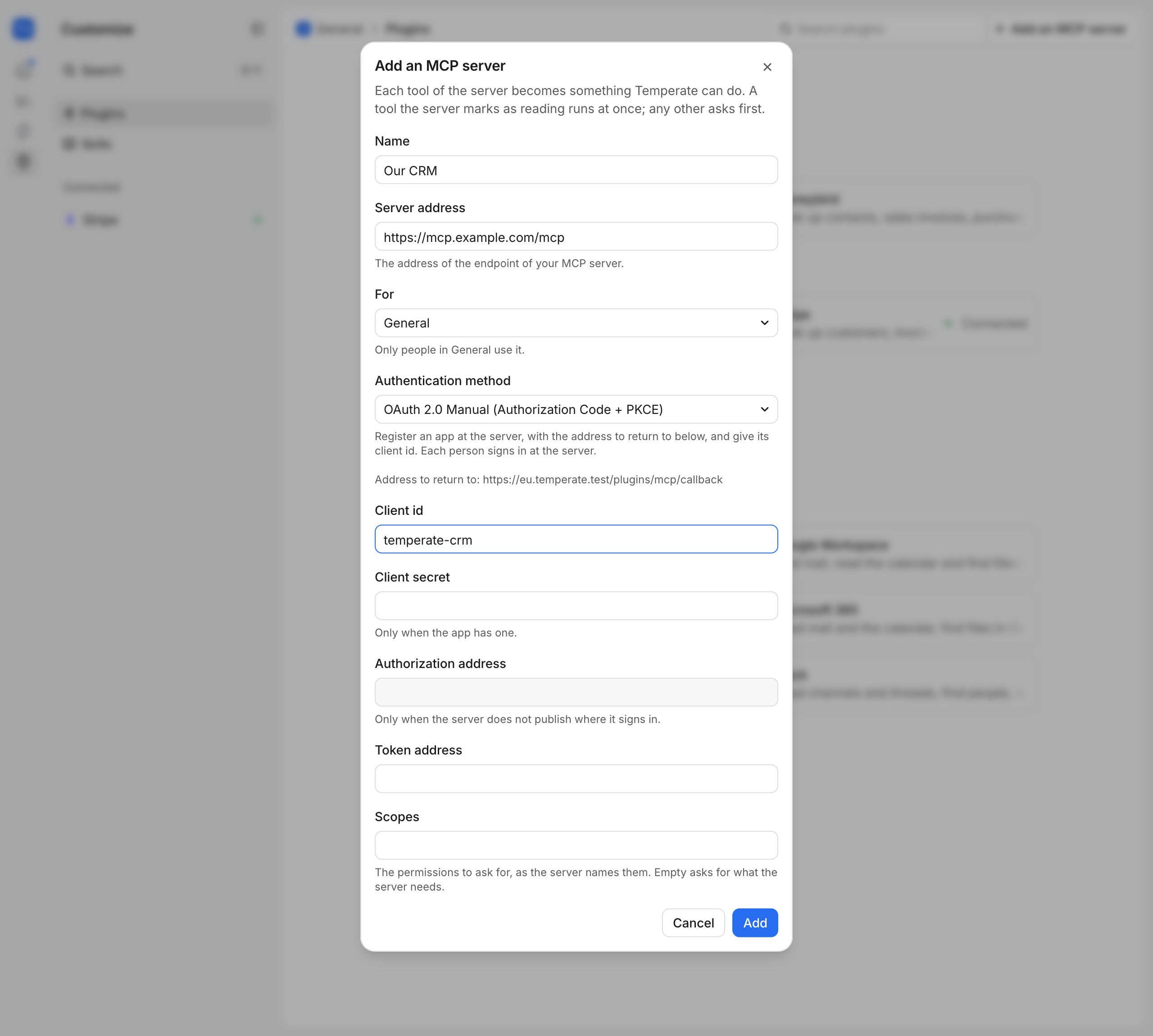
3
Choose how it signs in
Keep Automatic under Authentication method. Temperate then works out how to sign in. If the server gives you a key, choose API Key. If it needs its own app, choose OAuth 2.0 Manual and follow the dialog.
Its tools
The server’s page lists its tools and how each one runs.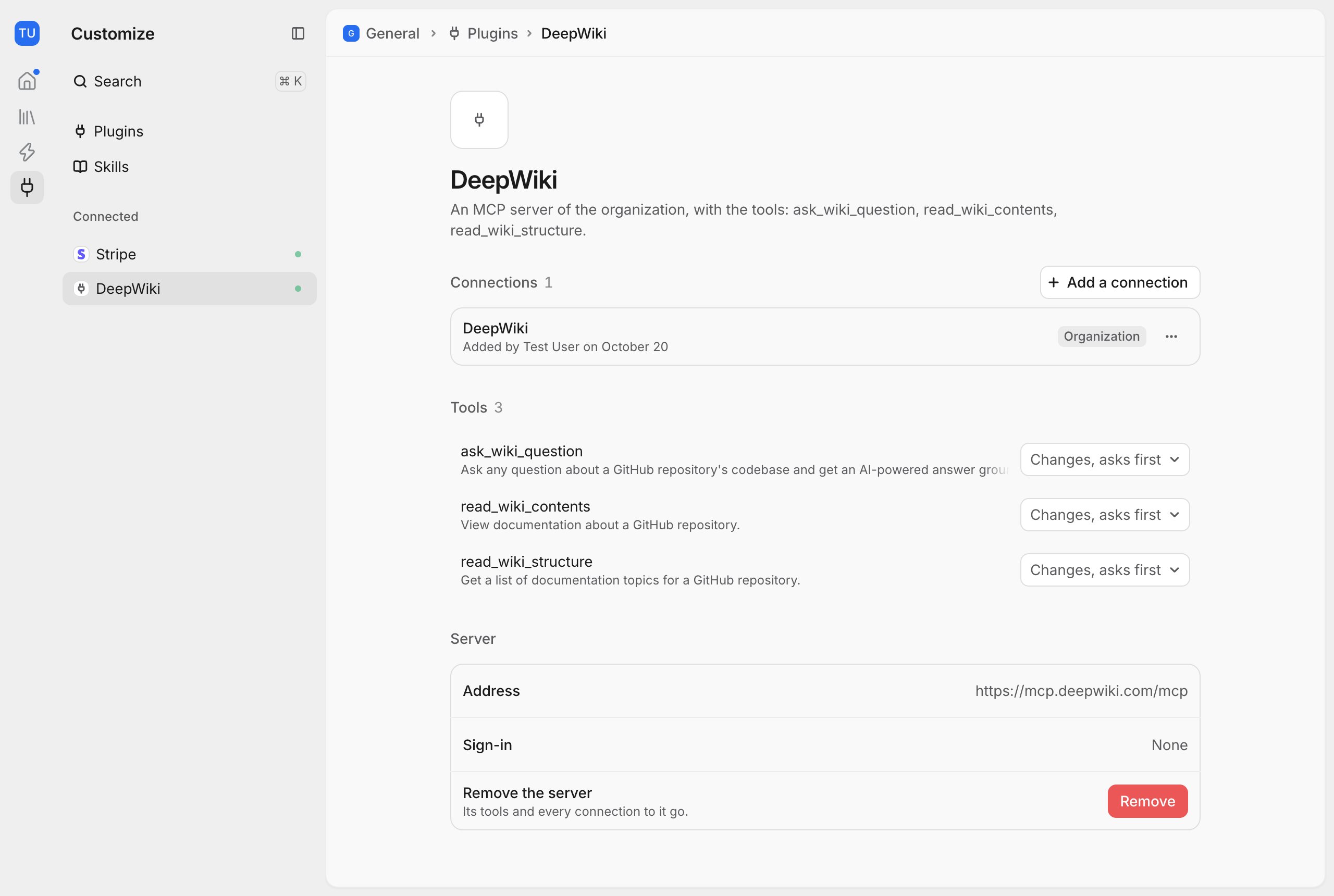
You can change a tool’s kind. If the server changes or adds a tool, it pauses until someone selects Approve as listed now.
To remove a server, open its page and select Remove under Server.