1

Open the plugin

Open Plugins in the rail and select the system.
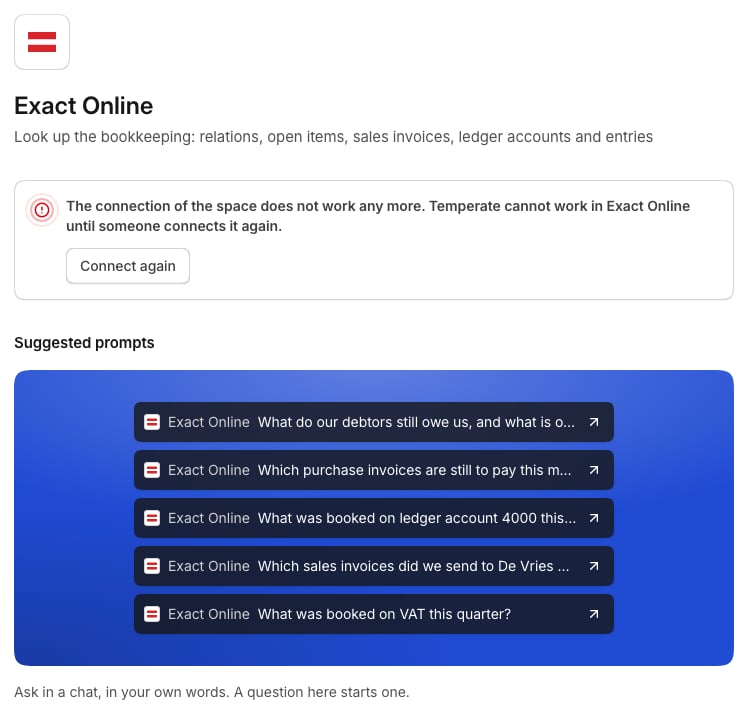
The page of a plugin, with its state and the suggested prompts that start a chat
2

Select Connect

Choose who the connection is for.
3

Approve in the system

Approve Temperate in the system, or paste a key that the system gives you.

Who a connection is for

A shared connection acts as the account that connected it, so everyone who uses it has that account’s rights.
Temperate uses the nearest connection: yours first, then the space’s, then the organization’s. So connect your mailbox for yourself, a client’s bookkeeping for that client’s space, and the CRM for the organization.

After you connect

The plugin’s page shows Suggested prompts to start from, and What Temperate can do in the system. If a connection stops working, for example after a password change, the plugin shows Connect again.

Remove a connection

On the plugin’s page, under Connections, open the connection’s menu and select Remove.